| Section |
Reviewer |
Page |
Date |
Original Comment |
Last Reply Author |
Last Reply Date |
Remediated |
Last Reply Text |
|
|
|
|
|
|
|
|
|
|
|
|
|
|
|
|
|
|
|
|
|
|
|
|
|
|
|
|
|
|
|
|
|
|
|
|
|
|
|
|
|
|
|
|
|
|
| (No Section Found) |
Dyer, Alicia |
1 |
5/23/2025 10:44 |
Required: This needs to be named according to
the FX Module/Application name and all associated KBS articles should also
follow this standard |
Alisha Linton |
6/9/2025 20:16 |
1 |
Added clarity to identify the module
application |
|
| Section Section 3 LOGIN AND NAVIGATION |
Jenks, Amy M |
31 |
5/23/2025 15:07 |
Required: I believe this should be ‘public’
not ‘publish’. |
Jonathan LeBlanc |
5/28/2025 13:40 |
1 |
Corrected. |
|
| Section Section 3 LOGIN AND NAVIGATION |
Jenks, Amy M |
31 |
5/23/2025 15:10 |
Clarification: Is this the correct Exhibit reference?
That exhibit is for adding widgets to a new Dashboard. This step is saying to
select the dashboard you want to make public. This doesn’t seem to align. Is
it actually supposed to reference exhibit 3-17? |
Jonathan LeBlanc |
5/28/2025 14:10 |
1 |
Remediated |
|
| Section Section 3 LOGIN AND NAVIGATION |
Jenks, Amy M |
32 |
5/23/2025 15:12 |
Clarification: The icon boxed in red is the
‘Edit’ function. This step is saying to select the show/hide icon. Which one
is the show/hide icon, and shouldn’t the dashboard name that is being made
public show somewhere in this pop-up? I’m confused. |
Jonathan LeBlanc |
5/28/2025 14:11 |
1 |
Remediated |
|
| Section Section 3 LOGIN AND NAVIGATION |
Jenks, Amy M |
33 |
5/23/2025 15:15 |
Deliverable Reviewers self-classify their comments
(Add type, listed below, as first word in comment, in both comment tracker
and Word documents):
Critical: The resolution of these comments, including clarifications, is
essential and must be completed to approve deliverable. Discussion with the
vendor is likely required to resolve. Required:
(Documentation/corrections/formats) The resolution of these comments,
including clarifications, is important and necessary to approve the
deliverable. Conditional approval to move forward - project tasks dependent
upon the approval on this artifact can commence. This artifact will be
eligible for payment upon final approval. Suggestion: The resolution of these
comments is not necessary for the approval of the deliverable.
Clarification: The resolution of this comment is dependent on discussion
between Deliverable Reviewer and vendor. Vendor to reach out to the
Deliverable Reviewer to discuss further PRIOR to remediation and
resubmission. Vendor to update comment(s) with discussion notes. |
Jonathan LeBlanc |
5/29/2025 8:28 |
1 |
N/A |
|
| Section Section 4 FINDING AND VIEWING
INTERACTIONS |
Jenks, Amy M |
37 |
5/23/2025 15:22 |
Clarification: Is there somewhere in this document
that outlines what each of the icons, in the right top corner of the list,
does? I couldn’t find it anywhere. If not, there should be steps to do what
each of those icons provides functionality for. |
Jonathan LeBlanc |
5/29/2025 9:19 |
1 |
I have added steps to show what
these additional buttons do while you’re in a view. Remediated. |
|
| Section Section 4 FINDING AND VIEWING
INTERACTIONS |
Jenks, Amy M |
38 |
5/23/2025 15:19 |
Clarification: What was selected, on the previous
screen, to launch the date range picker? |
Jonathan LeBlanc |
5/29/2025 9:20 |
1 |
I have updated the photo to clarify
what you select to launch the range picker. |
|
| Section Section 4 FINDING AND VIEWING
INTERACTIONS |
Jenks, Amy M |
38 |
5/23/2025 15:21 |
Clarification: What did you select, and on
which screen, to get to this filter screen? |
Jonathan LeBlanc |
5/29/2025 9:21 |
1 |
I have updated a photo and steps to
clarify how to launch filters within a view. |
|
| Section Section 4 FINDING AND VIEWING
INTERACTIONS |
Jenks, Amy M |
40 |
5/23/2025 15:24 |
Required: Include a reference to the Exhibit,
which captures the list of interactions, since this step says to select an
interaction. |
Jonathan LeBlanc |
5/29/2025 11:00 |
1 |
Updated with additional exhibits to
clarify process. |
|
| Section Section 5 MONITORING AND COACHING |
Jenks, Amy M |
42 |
5/23/2025 15:28 |
Required: This is an incorrect Exhibit reference.
This appears to be 4-1, not 3-1. |
Jonathan LeBlanc |
5/29/2025 11:01 |
1 |
Revised to 4-1 |
|
| Section Section 5 MONITORING AND COACHING |
Jenks, Amy M |
42 |
5/23/2025 15:41 |
Required: Include reference to the related
Exhibit 4-1 for this step as well. We need to be consistent. The reference is
included under the Monitoring a Customer section, so please include it here
as well. |
Jonathan LeBlanc |
5/29/2025 11:03 |
1 |
Updated to include reference to
exhibit 4-1. |
|
| Section Section 5 MONITORING AND COACHING |
Jenks, Amy M |
43 |
5/23/2025 15:30 |
Required: Activity is spelled wrong. |
Jonathan LeBlanc |
5/29/2025 11:03 |
1 |
Corrected spelling error. |
|
| Section Section 5 MONITORING AND COACHING |
Jenks, Amy M |
45 |
5/23/2025 15:39 |
Required: Since this is a user manual, there
needs to be steps to cover what functionality is available under each of the
tabs shown in Exhibit 5-5. This includes timeline, quality summary,
transcript, audit trail and customer journeys. If these tabs aren’t available
or don’t function, then there needs to be a note to that affect. |
Jonathan LeBlanc |
6/2/2025 11:08 |
1 |
This user manual provides a
high-level overview to assist with specific tasks. For detailed, step-by-step
instructions and task-specific guidance, please refer to the Genesys Cloud
job aids, which offer in-depth breakdowns of system features and processes. |
|
| Section Section 5 MONITORING AND COACHING |
Jenks, Amy M |
47 |
5/23/2025 15:44 |
Clarification: What are the monitoring controls?
The ellipses in the top center, the - and x buttons, the play button in the
top left, and the 2 buttons below GTS, aren’t described. All that detail
should be included here, so a user can understand all the functionality
available and what each does. |
Jonathan LeBlanc |
6/2/2025 12:38 |
1 |
The application has been updated to
remove these unnecessary controls. I have updated pictures and steps to
reflect this. |
|
| Section Section 5 MONITORING AND COACHING |
Jenks, Amy M |
48 |
5/23/2025 15:36 |
Clarification: In Exhibit 5-7, the blue drop
down arrow, when selected for Internal, shows Monitor and Coach. In addition,
under Internal in 5-7, there are different details. It appears that once you
select Monitor, the language changes to say ‘Multiple’. And then the blue
drop down arrow has different selections based on 5-9. Is this all correct?
If so, all those details need to be spelled out within the appropriate steps,
so it is clear how it functions. Otherwise, this can be confusing. |
Jonathan LeBlanc |
6/2/2025 12:48 |
1 |
I have updated the screenshot to
reflect the recent changes in the application. The language changes after the
call has been monitored to clarify that a Supervisor or Admin has monitored
the call. Please note that the options available in the blue dropdown menu
remain unchanged, they are static, consistently offering the options Monitor,
Coach, and Barge-In. This section provides a high-level overview of the
monitoring process, with details specifically focused on the monitoring
functionality. |
| Section Section 5 MONITORING AND COACHING |
Jenks, Amy M |
48 |
5/23/2025 15:50 |
Required: There is a missing step where the
user has to enter Queue Activity in the search field. There should be a step
before this that captures that, and references the same 5-1 Exhibit. |
Jonathan LeBlanc |
6/2/2025 8:41 |
1 |
Added step 4 to address this. |
|
| Section Section 5 MONITORING AND COACHING |
Jenks, Amy M |
51 |
5/23/2025 15:45 |
Clarification: Same as comment associated with
Exhibit 5-8 above. Include all the details. |
Jonathan LeBlanc |
6/2/2025 12:53 |
1 |
There are no longer monitoring
controls as the application has been updated. The only controls available now
are the option to stop the monitoring. I have updated the steps and
screenshots to reflect. |
|
| Section Section 5 MONITORING AND COACHING |
Jenks, Amy M |
52 |
5/23/2025 15:48 |
Clarification: Similar to comment associated
with Exhibit 5-9. In Exhibit 5-11, the blue drop down arrow, when selected
for External, shows Monitor. It
appears that once you select Monitor, and the pop-up displays, the blue drop
down arrow has different selections based on 5-13. Is this all correct? If
so, all those details need to be spelled out within the appropriate steps, so
it is clear how it functions. Otherwise, this can be confusing. |
Jonathan LeBlanc |
6/2/2025 12:57 |
1 |
Because of the application update,
they have simplified monitoring a customer. There is no longer any additional
information or changes to the blue drop down. I have updated the screenshot
to reflect. |
|
| Section Section 5 MONITORING AND COACHING |
Jenks, Amy M |
52 |
5/23/2025 15:51 |
Required: There is a missing step where the
user has to enter Queue Activity in the search field. There should be a step
before this that captures that, and references the same 5-1 Exhibit. |
Jonathan LeBlanc |
6/2/2025 8:46 |
1 |
Added step 4 to address this
comment. |
|
| Section Section 5 MONITORING AND COACHING |
Jenks, Amy M |
53 |
5/23/2025 15:55 |
Required: There are multiple steps missing
here, and there should be an Exhibit reference for this step. Based on the
steps outlined for monitoring an agent, 5-2 is the Exhibit showing the
Interacting section at the bottom of the screen. The user then has to click
on the vertical menu to the right of the applicable interaction, and then
select the Details icon (open book). Upon selecting the Details icon, the
user is then navigated to this screen here in 5-14 and selects either Monitor
or Coach. And while this section is for Coaching, the screenshot here, for
5-14, shows a ‘Stop Monitoring’ selection, which would elude to the user
having to first select ‘Monitor’ and then gets a selection for Coach??? All
of these steps need to be included and confusion cleared up. |
Jonathan LeBlanc |
6/2/2025 17:40 |
1 |
I have added steps and updated
several screenshots to clarify and make this process more easily digestible. |
|
| Section Section 5 MONITORING AND COACHING |
Jenks, Amy M |
54 |
5/23/2025 16:00 |
Clarification: I am thoroughly confused at
this point. The GTS pop-up screen, based on the steps for monitoring, shows
up after the user clicks the Internal drop down and has Monitor and Coach as
selection. So do you have to do that too? And if not, how is the pop-up
showing? And where is the list of agents to select from? Didn’t the user have
to select the Details icon next to the interaction they want to coach? (ties
to comment above). All of these steps and missing details need to be spelled
out, and it seems possibly more Exhibits need to be included. And if the list
of agents would show in the pop-up where the Coach selection is, then please
include an Exhibit that shows how that looks for clarity. |
Jonathan LeBlanc |
6/2/2025 17:41 |
1 |
See previous comment. Steps and
pictures have been updated. |
|
| Section Section 5 MONITORING AND COACHING |
Jenks, Amy M |
55 |
5/23/2025 16:02 |
Required: The GTS pop-up has different buttons
once they begin Coaching. Please include steps or a note that details what
each button does, so the functionality available is clear on how it works.
And once you select Coach, is that when the Stop Coaching dynamically
displays? This detail needs to be included. |
Jonathan LeBlanc |
6/2/2025 17:43 |
1 |
Previous two comments address this.
Screenshots and steps have been updated. |
|
| (No Section Found) |
Jenks, Amy M |
57 |
5/23/2025 16:06 |
Clarification: Which view are they selecting
as part of this manual? Is it any of the views in the screenshot? |
Jonathan LeBlanc |
6/2/2025 10:25 |
1 |
It can essentially be any view
listed here. You can build a report view from any of the listed views here. |
|
| (No Section Found) |
Jenks, Amy M |
58 |
5/23/2025 16:07 |
Required: Include an Exhibit that shows the
screen from which the filter icon is selected. Meaning, once the user
selected the applicable view in Step 4 above, which is related to Exhibit
6-1, what does the screen look like? Exhibit 6-2 is what shows after they
have selected the filter icon. |
Jonathan LeBlanc |
6/2/2025 17:50 |
0 |
Remediated. |
|
| (No Section Found) |
Jenks, Amy M |
59 |
5/23/2025 16:08 |
Required: Capitalize View, since it is capitalized
in the hover text of the screenshot. |
Jonathan LeBlanc |
6/2/2025 8:51 |
0 |
Remediated |
|
| (No Section Found) |
Jenks, Amy M |
59 |
5/23/2025 16:11 |
Required: Capitalize Name. |
Jonathan LeBlanc |
6/2/2025 8:51 |
0 |
Remediated. |
|
| (No Section Found) |
Jenks, Amy M |
59 |
5/23/2025 16:13 |
Clarification: Did the drop down default initially
as ‘Today’ or is it null, and that is what was selected for Step 10? And what
is the specific action that triggers the calendar function? Is it when they
select something different from Today, if that is the default, or when they
select anything, if null is the default? |
Jonathan LeBlanc |
6/2/2025 10:32 |
1 |
Updated verbiage on step 10 to
clarify time period options and updated the exhibit. |
|
| (No Section Found) |
Jenks, Amy M |
60 |
5/23/2025 16:15 |
Clarification: Is this the screen that displays
once they click the Save button in Exhibit 6-4? I wouldn’t think so. Wouldn’t
the user be returned to the previous screen Exhibit 6-3, where they then
click Save? If so, then what happens after they click Save? Where are they
navigated to? How did they get to the screenshot in 6-5? All of these details
and steps need to be included to make sense, and be helpful to the user who
is going through this user manual. Also, where are the steps for the other
tab functions that display in this screenshot? If they aren’t available, a
note should be captured. If they do function, they should be included in this
user manual. |
Jonathan LeBlanc |
6/2/2025 10:39 |
1 |
The view stays open during this
entire process. The “Save View” pane is a side bar that doesn’t hide the view
you are saving. Once you click save, the “Save View” side bar minimizes. |
|
|
|
|
|
|
|
|
|
|
|
|
|
|
|
|
|
|
|
|
|
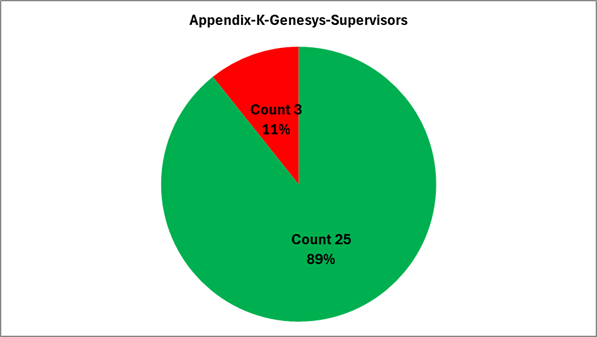
| Count |
28 |
|
|
|
|
|
|
|
|
| Remediated |
25 |
89.29% |
|
|
|
|
|
|
|
| Not Remediated |
3 |
10.71% |
|
|
|
|
|
|
|
|
|
|
|
|
|
|
|
|
|
|
|
|
|
|
|
|
|
|
|
|
|
|
|
|
|
|
|
|
|
|
|
|
|
|
|
|
|
|
|
|
|
|
|
|
|
|
|
|
|
|
|
|
|
|
|
|
|
|
|
|
|
|
|
|
|
|
|
|
|
|
|
|
|
|
|
|
|
|
|
|
|
|
|
|
|
|
|
|
|
|
|
|
|
|
|
|
|
|
|
|
|
|
|
|
|
|
|
|
|
|
|
|
|
|
|
|
|
|
|
|
|
|
|
|
|
|
|
|
|
|
|
|
|
|
|
|
|
|
|
|
|
|
|
|
|
|
|
|
|
|
|
|
|
|
|
|
|
|
|
|
|
|
|
|
|
|
|
|
|
|
|
|
|
|
|
|
|
|
|
|
|
|
|
|
|
|
|
|
|
|
|
|
|
|
|
|
|
|
|
|
|
|
|
|
|
|
|
|
|
|
|
|
|
|
|
|
|
|
|
|
|
|
|
|
|
|
|
|
|
|
|
|
|
|